 Install with Gale
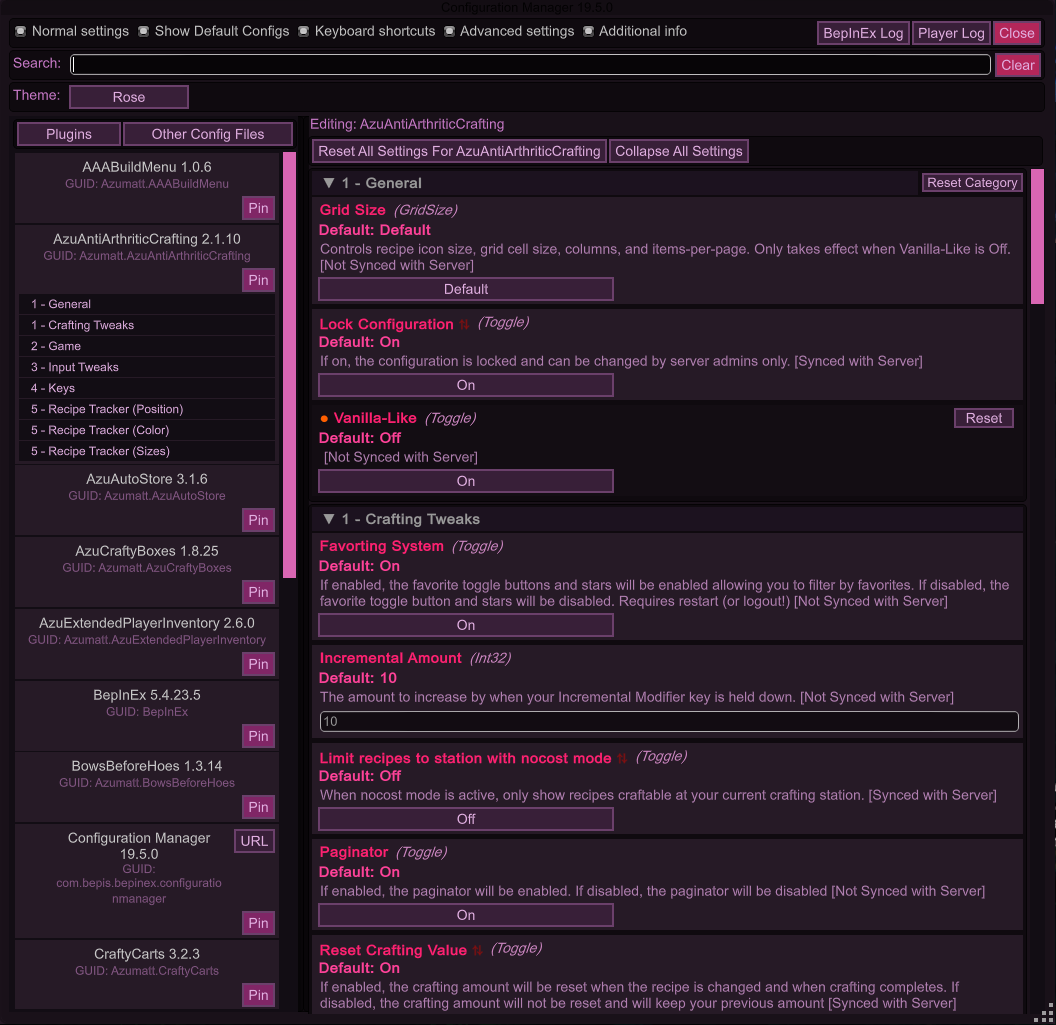
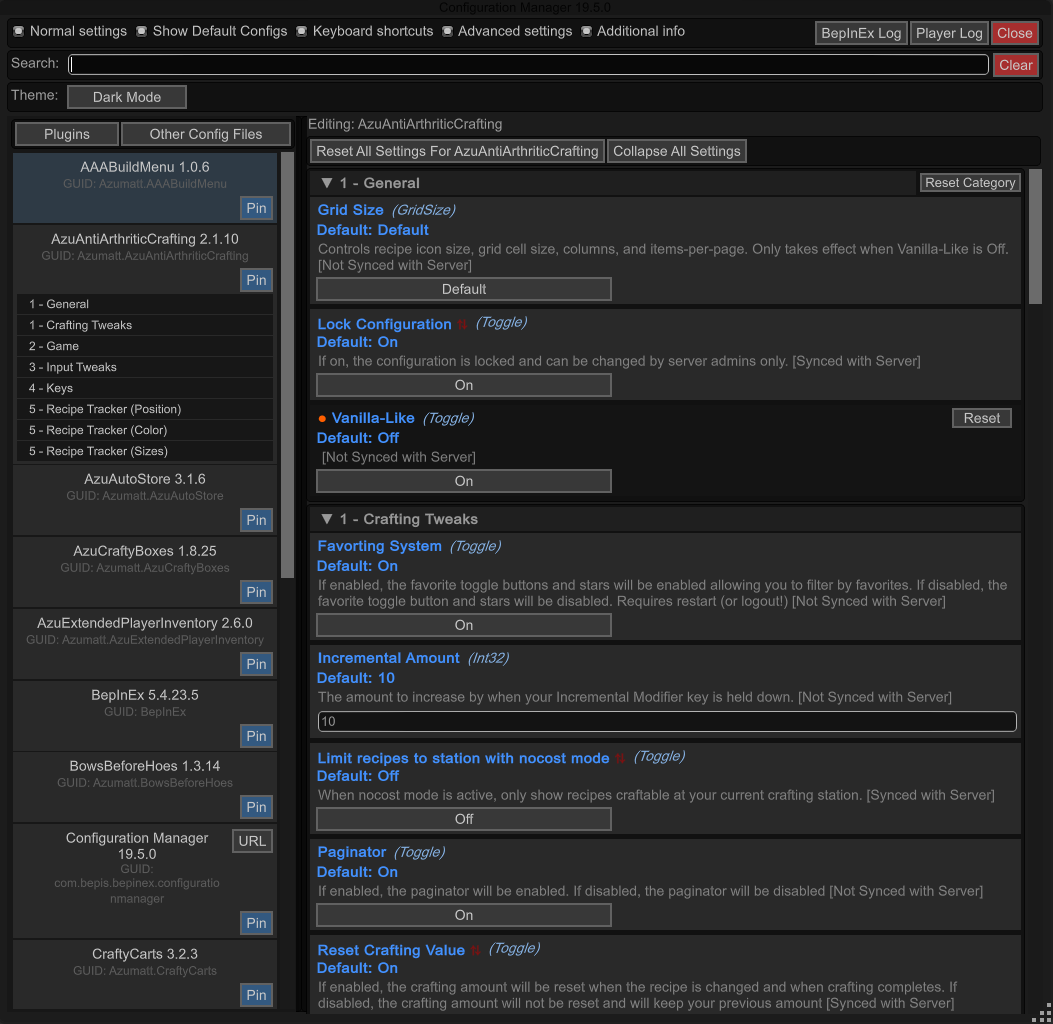
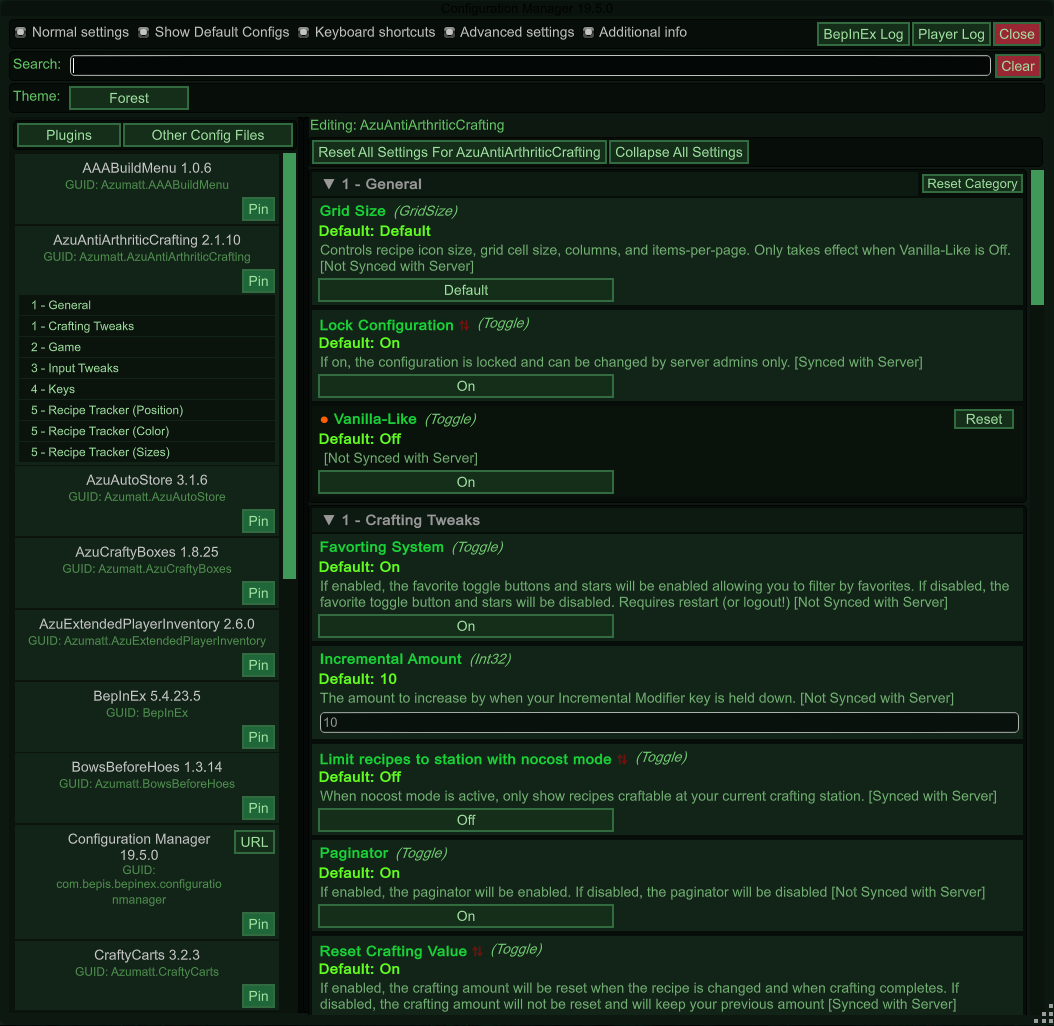
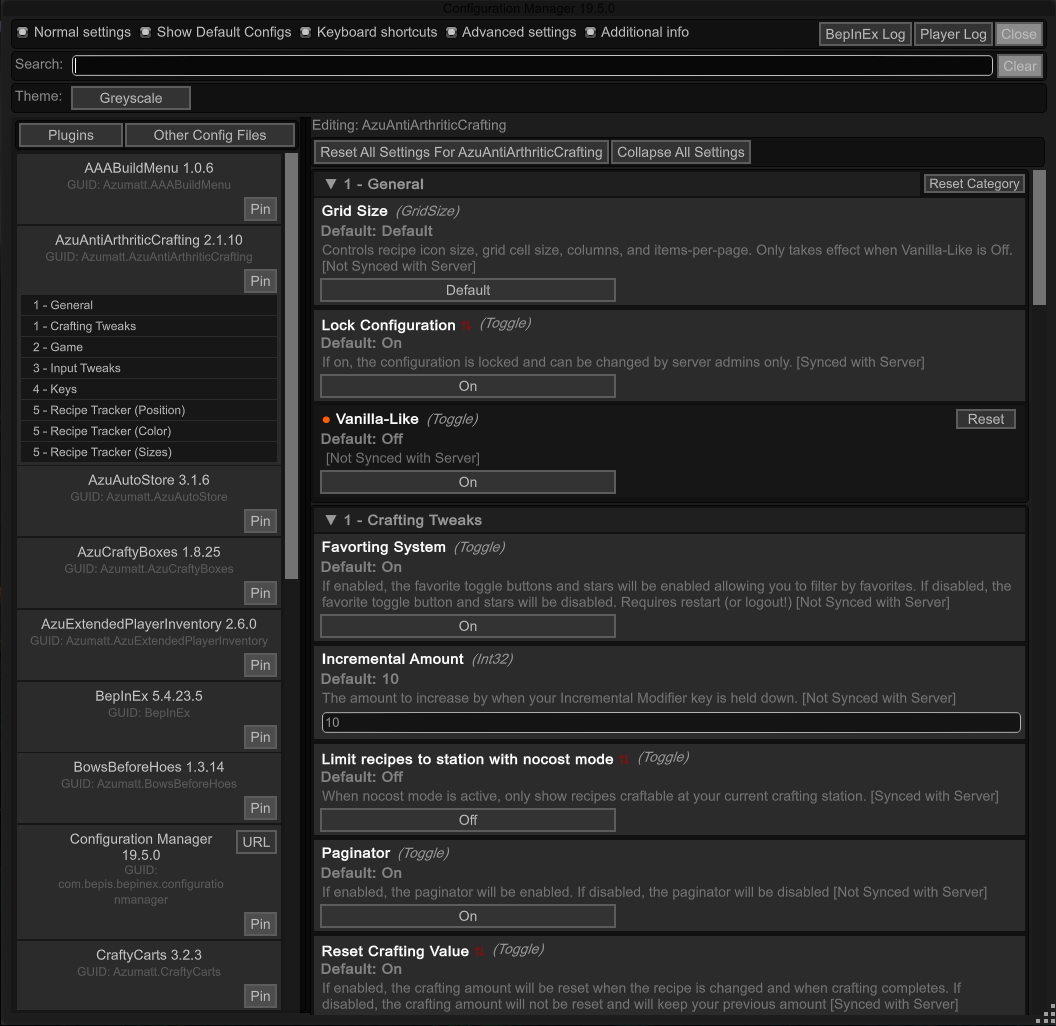
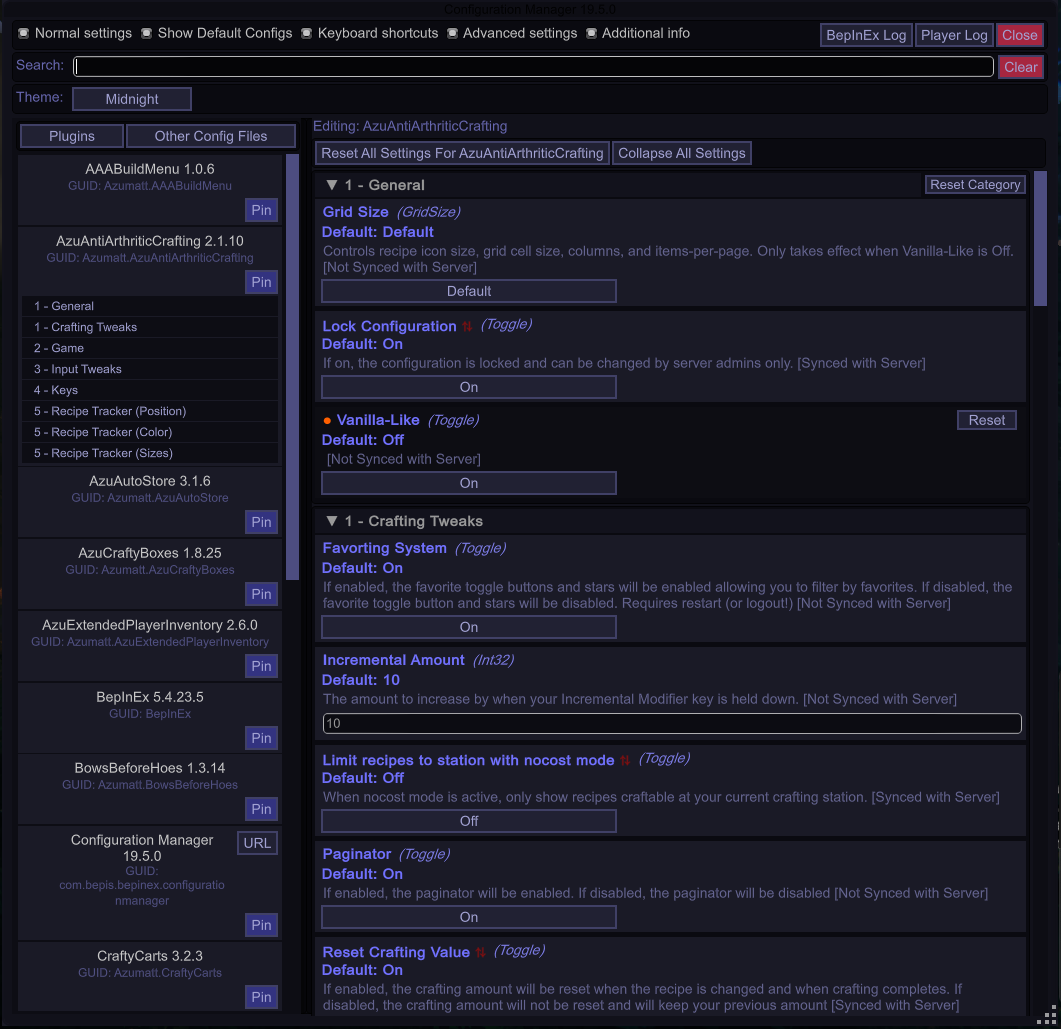
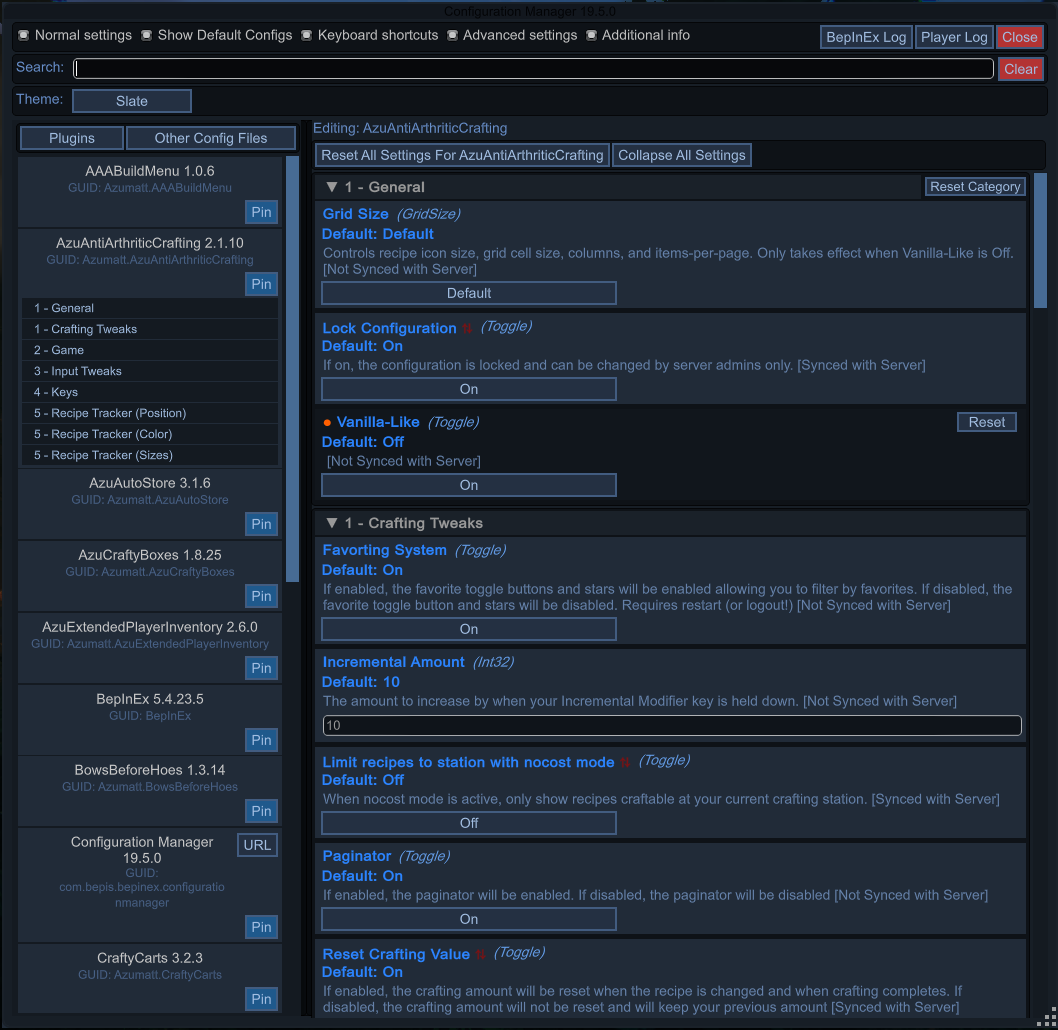
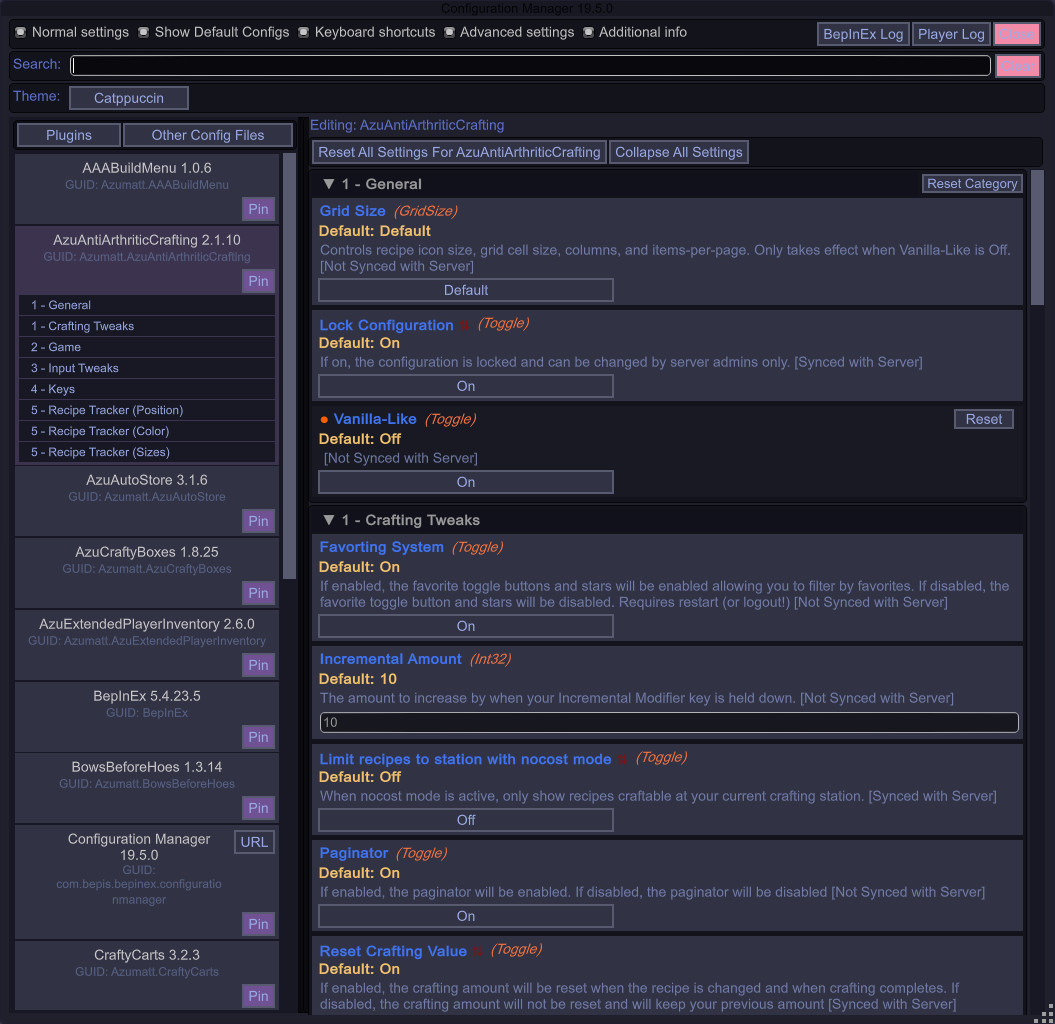
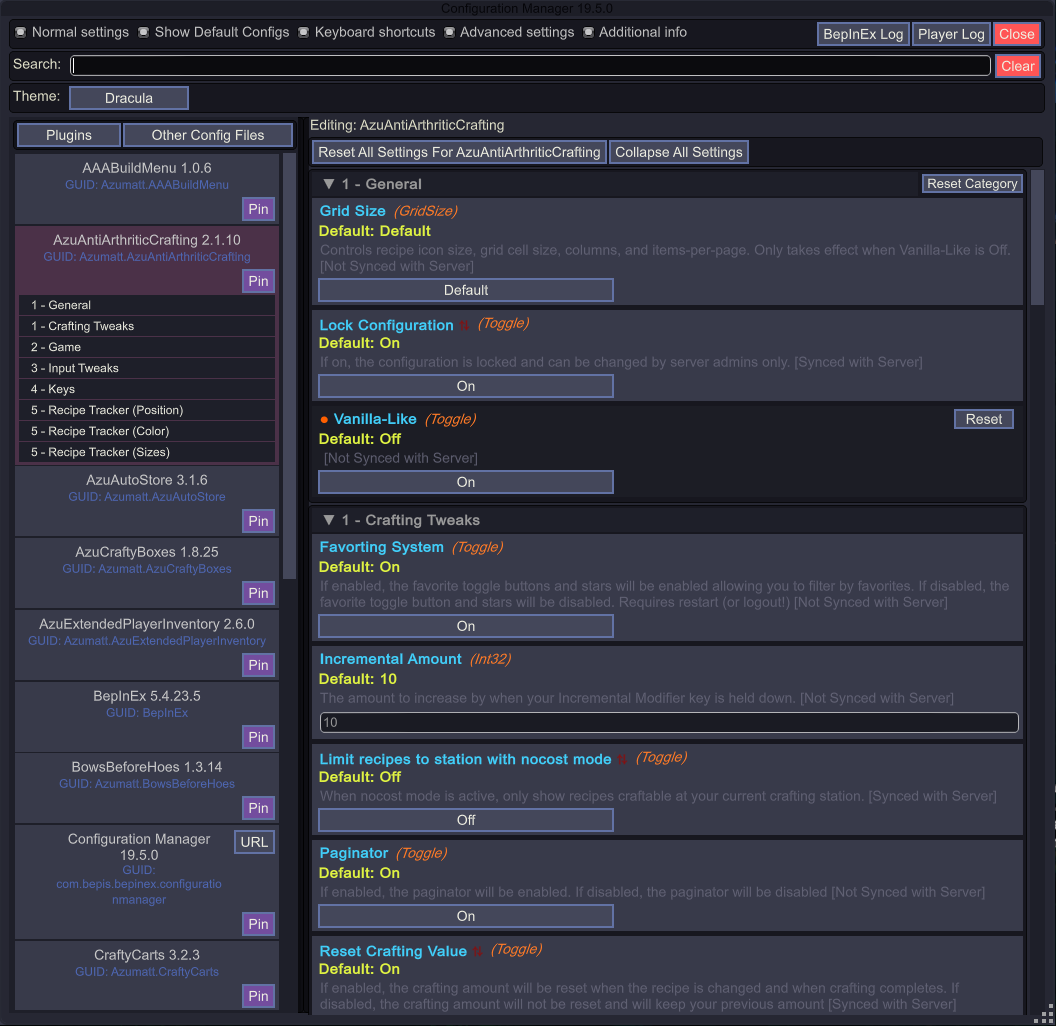
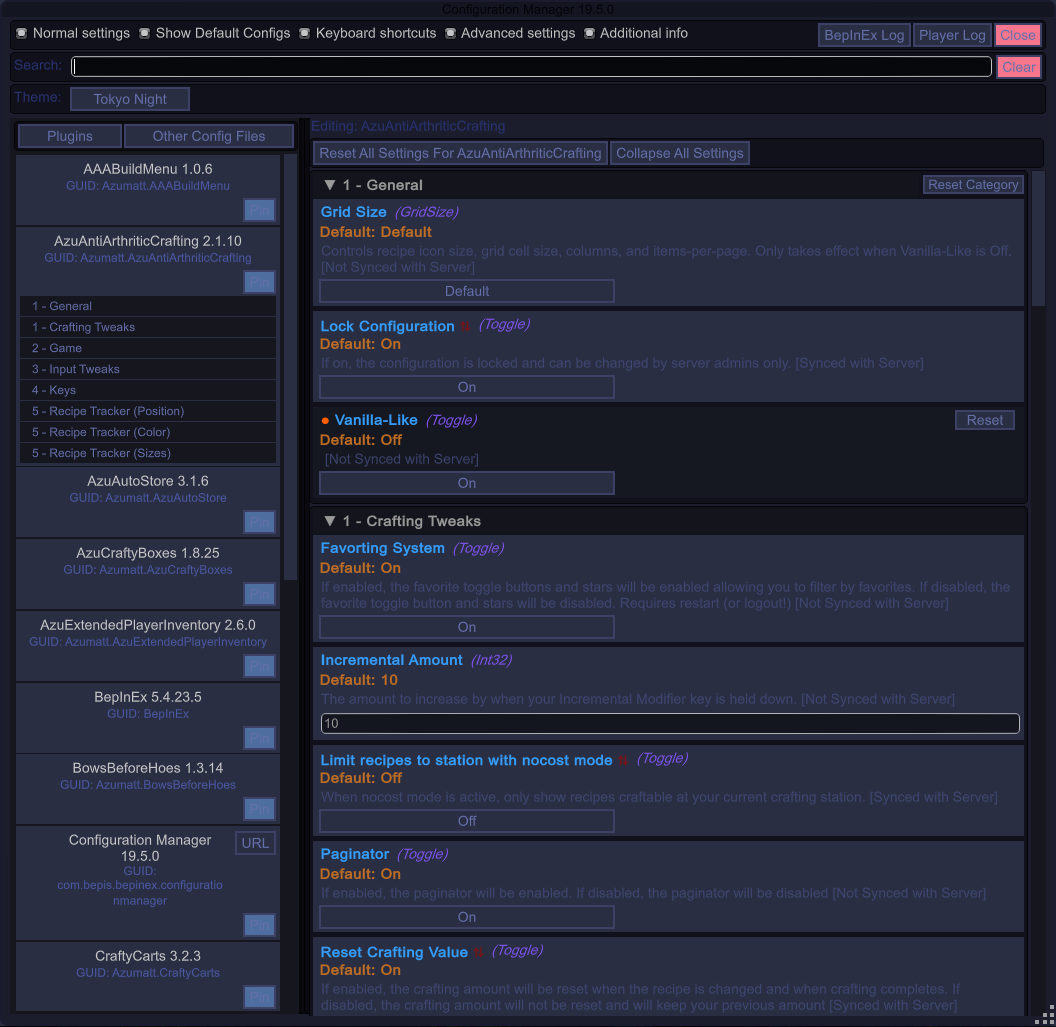
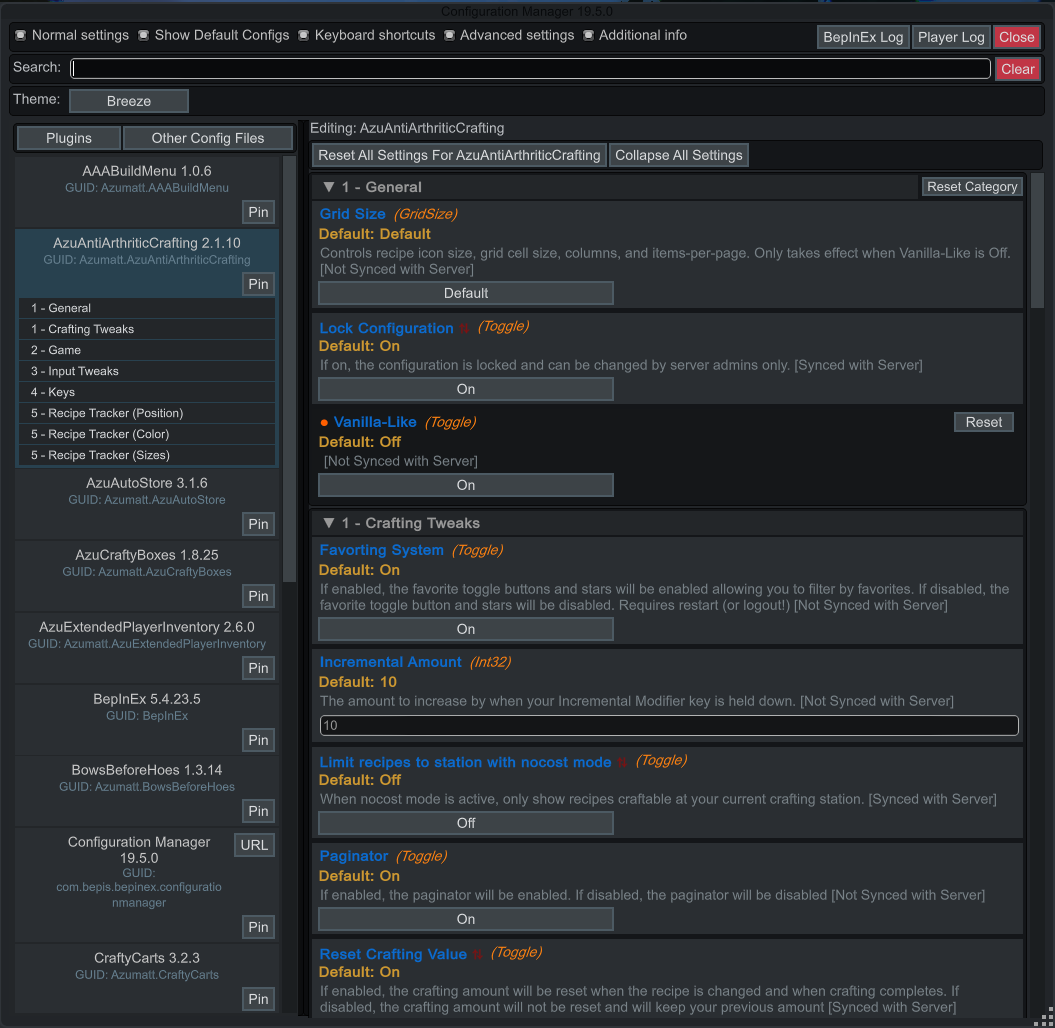
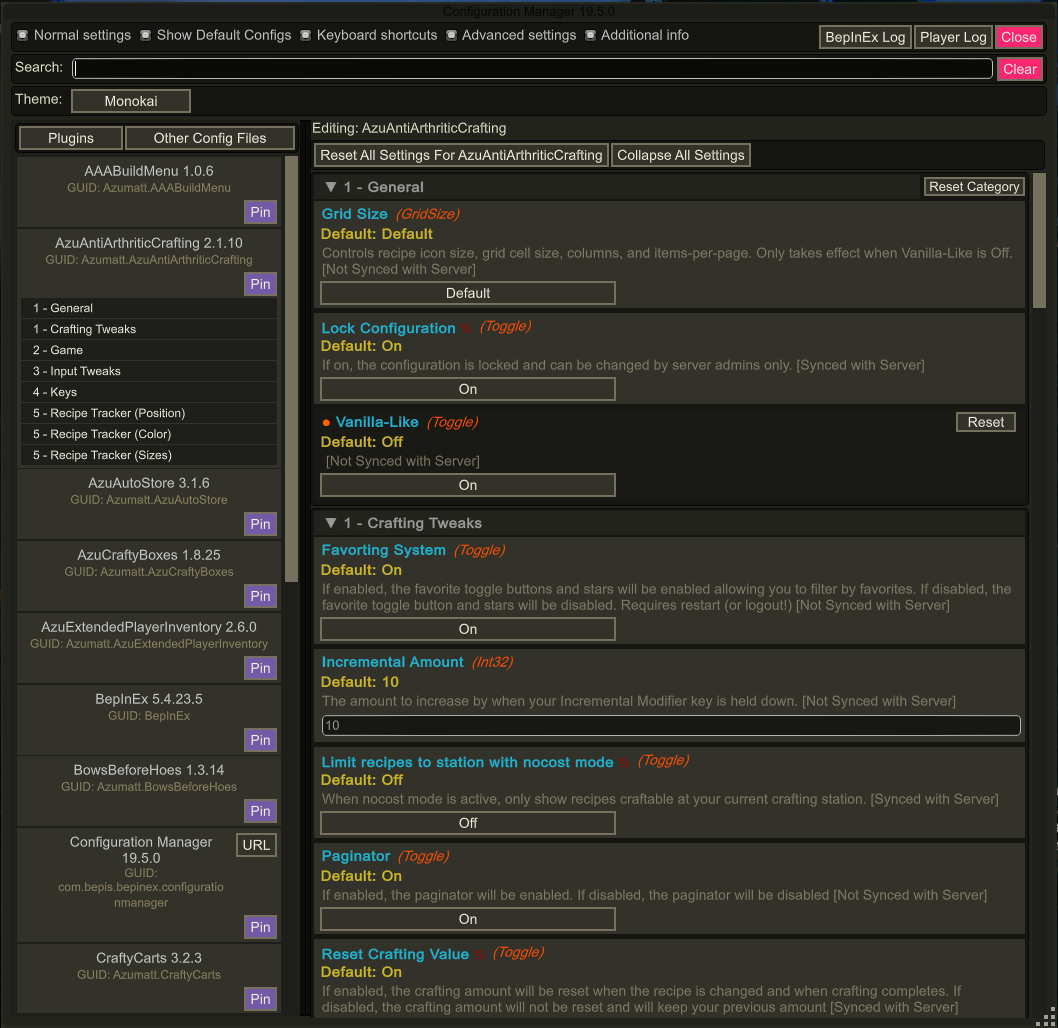
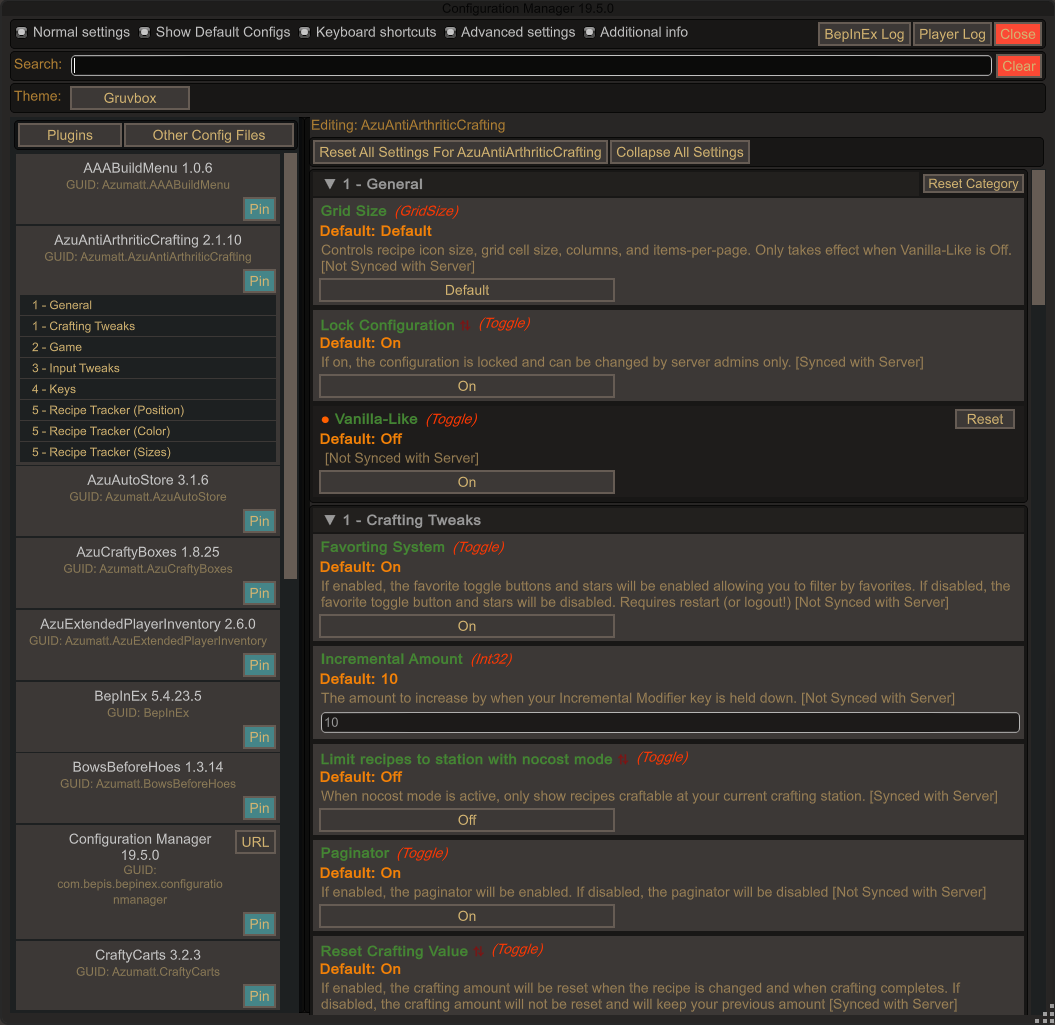
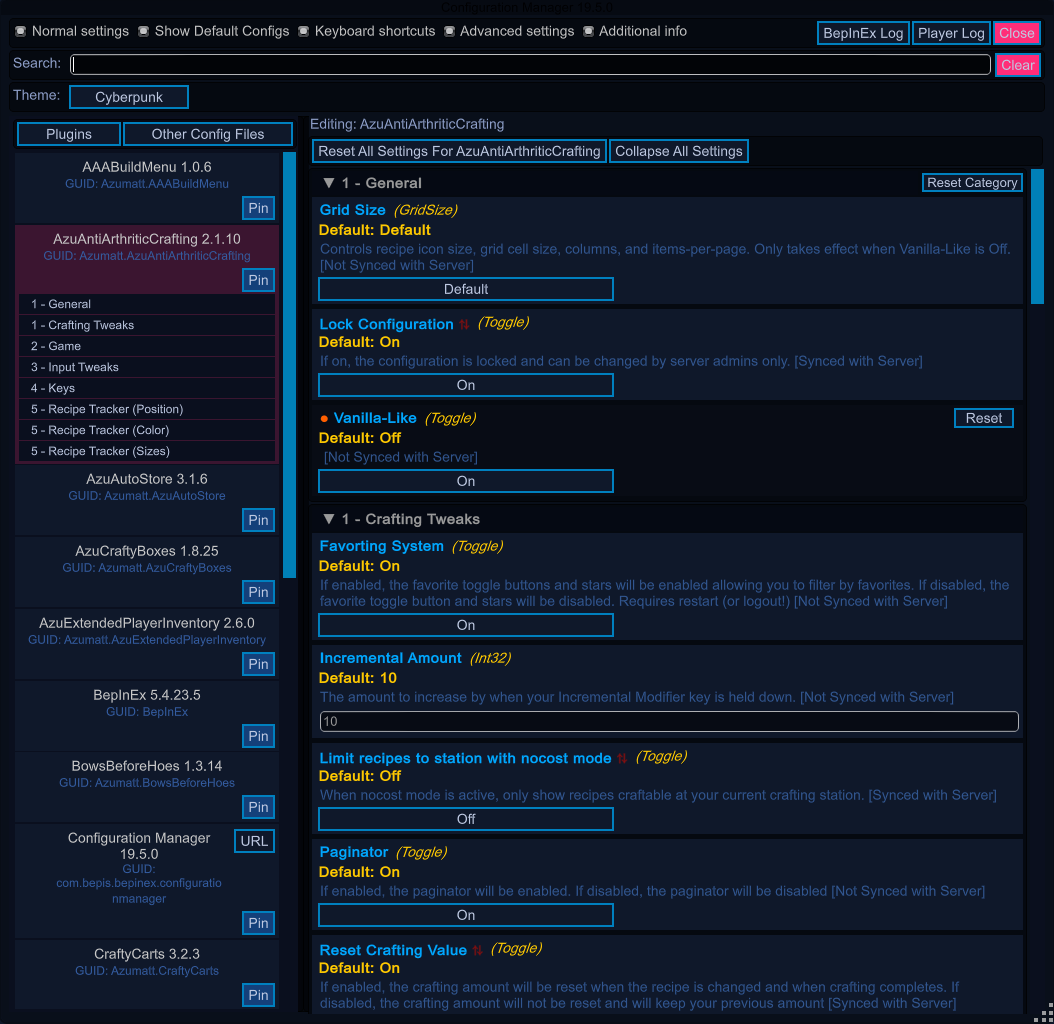
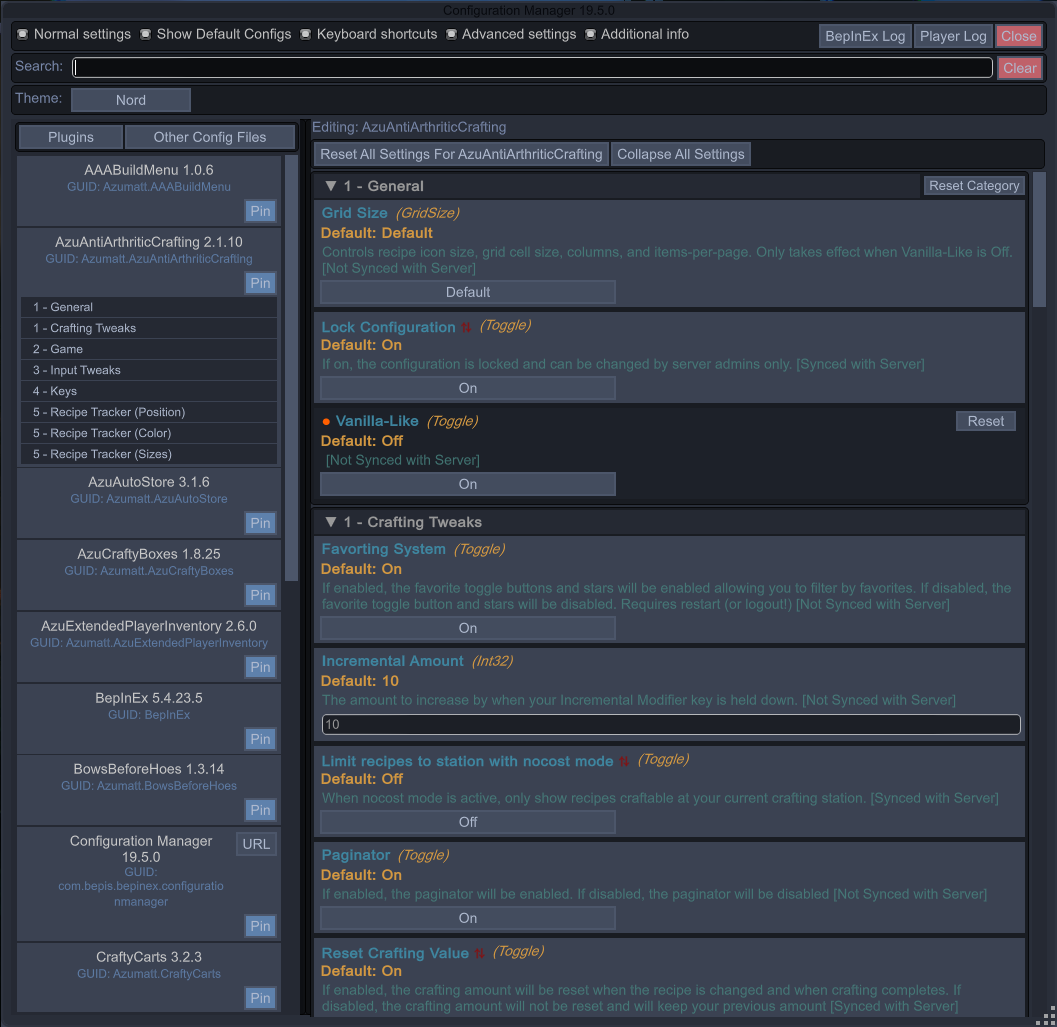
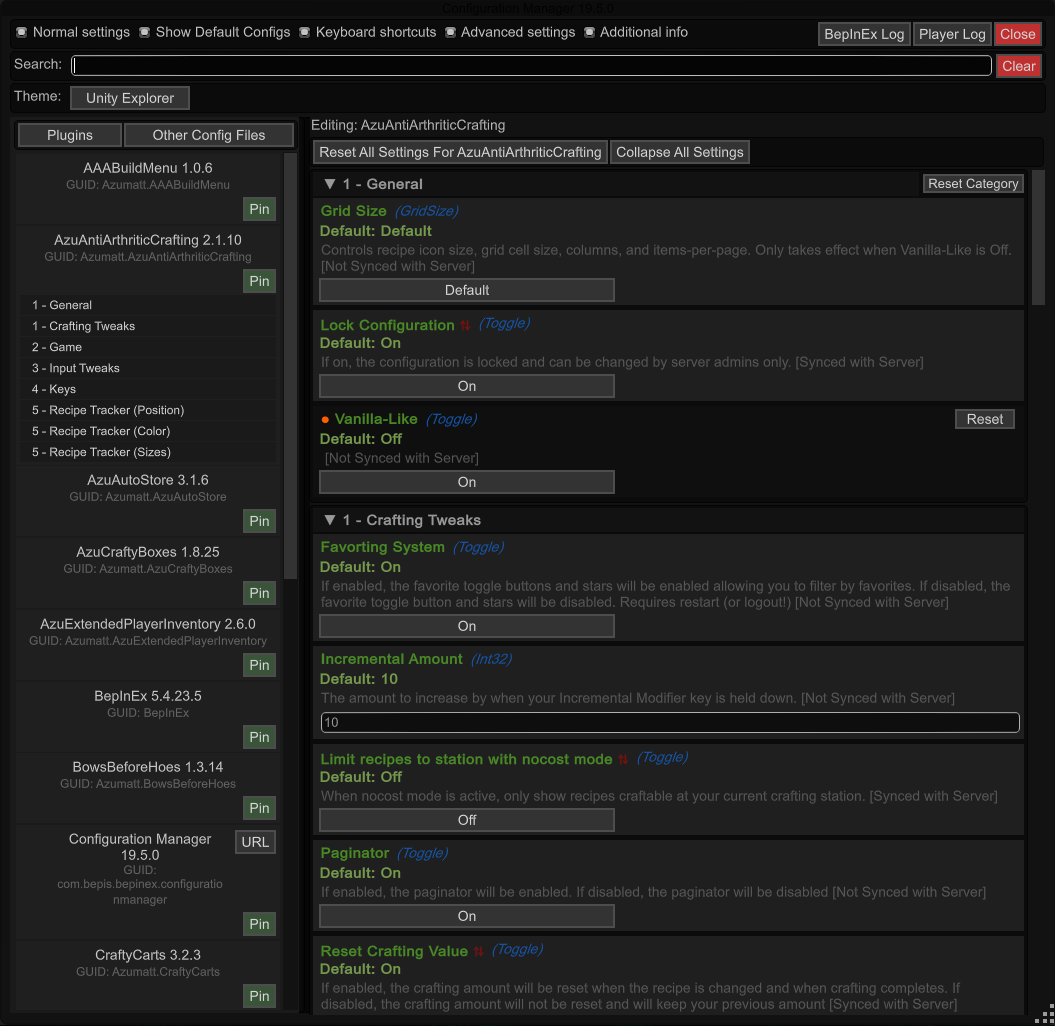
Warning: At least BepInEx v5.4.20 is required as of v17.1!
Please NOTE:
The mod was created and hosted by the BepInEx team https://github.com/BepInEx
I do not own the base code, I only own my customizations to it (layout changes, caching, dragging, colors, and custom drawers/input) all credits go to the BepInEx team. I just uploaded it for ease of access to the latest version.
This is my UnOfficial version of the Configuration Manager. I will keep it updated with anything the BepInEx developers do to it, but I wanted extra features :P
Find my version's code here: https://github.com/AzumattDev/BepInEx.ConfigurationManager
My version complies with the license of the original repo.
Check the mod out: https://github.com/BepInEx/BepInEx.ConfigurationManager
Plugin / mod configuration manager for BepInEx 5
An easy way to let user configure how a plugin behaves without the need to make your own GUI. The user can change any of the settings you expose, even keyboard shortcuts.
The Configuration Manager is designed to simplify mod configuration for both developers and end‑users. Whether you’re a plugin developer wanting to expose rich configuration options or an end‑user wanting to tweak settings in-game, this tool aims to provide a smooth and integrated experience.
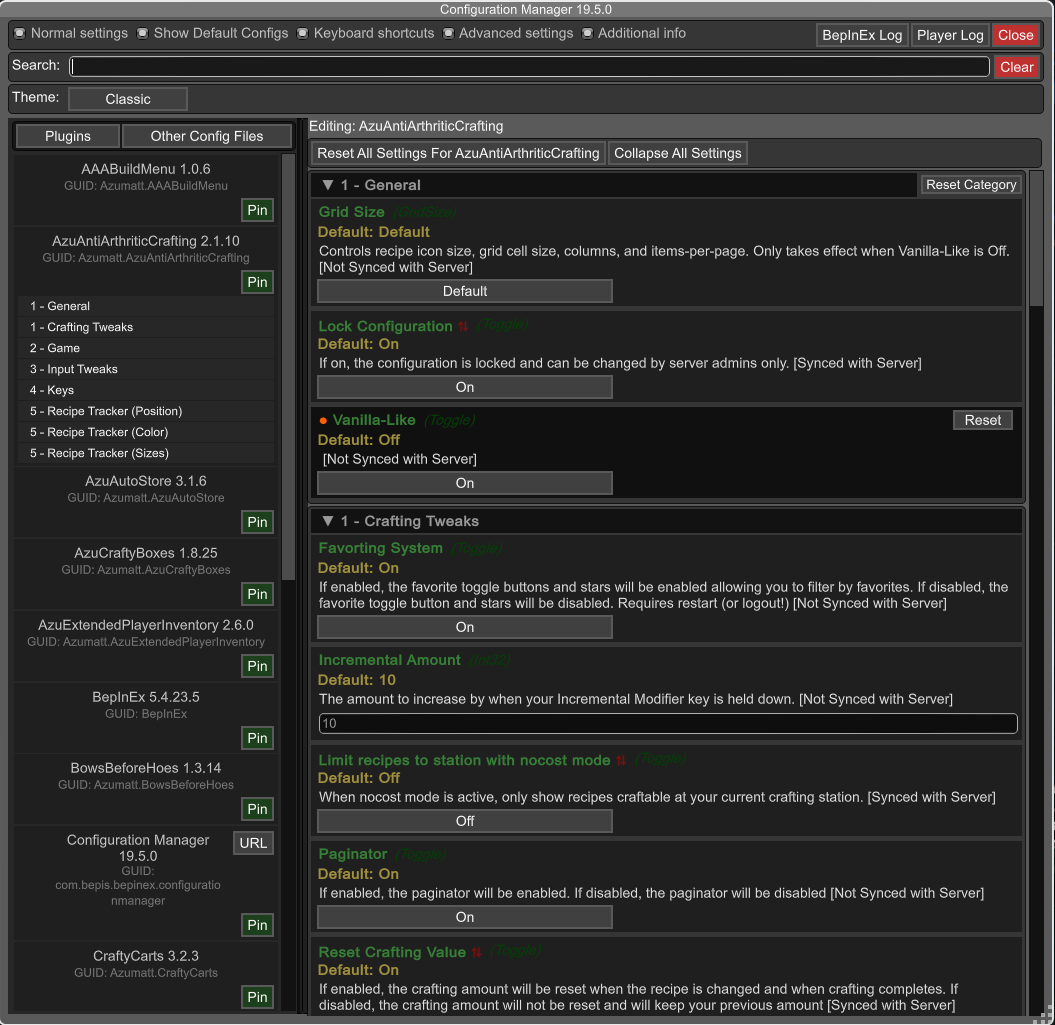
The configuration manager can be accessed in-game by pressing the hotkey (by default F1). Hover over the setting names to see their descriptions, if any.
Notable changes from the official version:
- Caching of settings to improve performance.
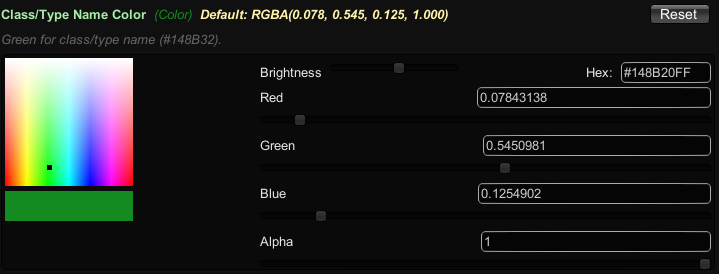
- Custom color drawers for colors. Majorly improves the color selection experience.
- Custom layout for better usability. Two columns instead of one long one.
- Custom pinning of plugins for quick access.
- Custom overlay canvas to block game input when the configuration window is active. (The config manager still remains game agnostic. Meaning it will work with any game that uses BepInEx. Not just Valheim)
- Custom keyboard shortcuts for changing keybinds.
- Custom search functionality.
- Display for read-only settings. Usually used for synced settings (ServerSynced configurations). Noted by the red up and down arrows.
- Custom display for other config files.
- Dynamic layout for different resolutions.
- Custom dragging of the configuration window.
- Ability to delete config files from the configuration manager.
- Ability to open config files from the configuration manager (uses default file editor on your machine). The recommendation is at least Notepad++, but VSCode is one of the better choices.
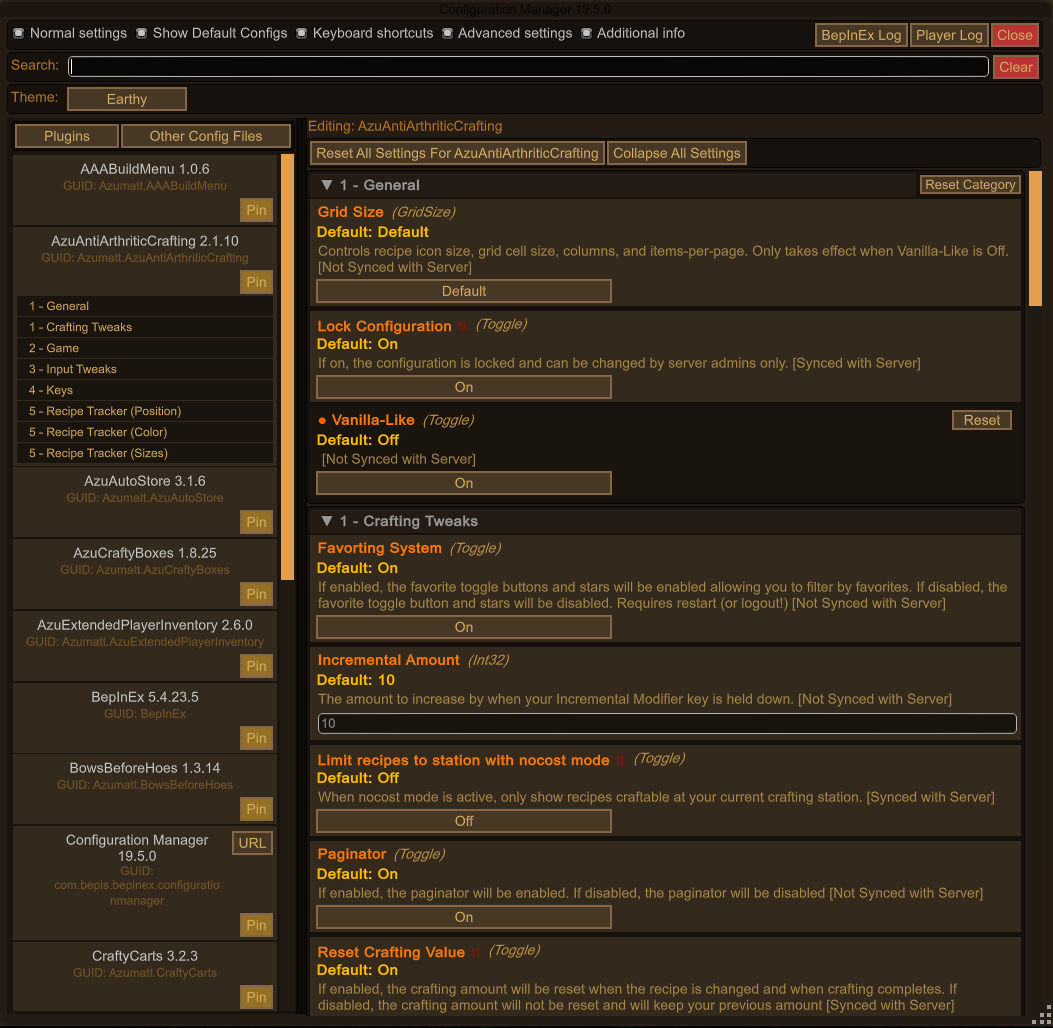
- Ability to change various settings in the configuration manager itself. Colors, font size, etc.
- Probably more that I forgot to mention!
Using the Manager:
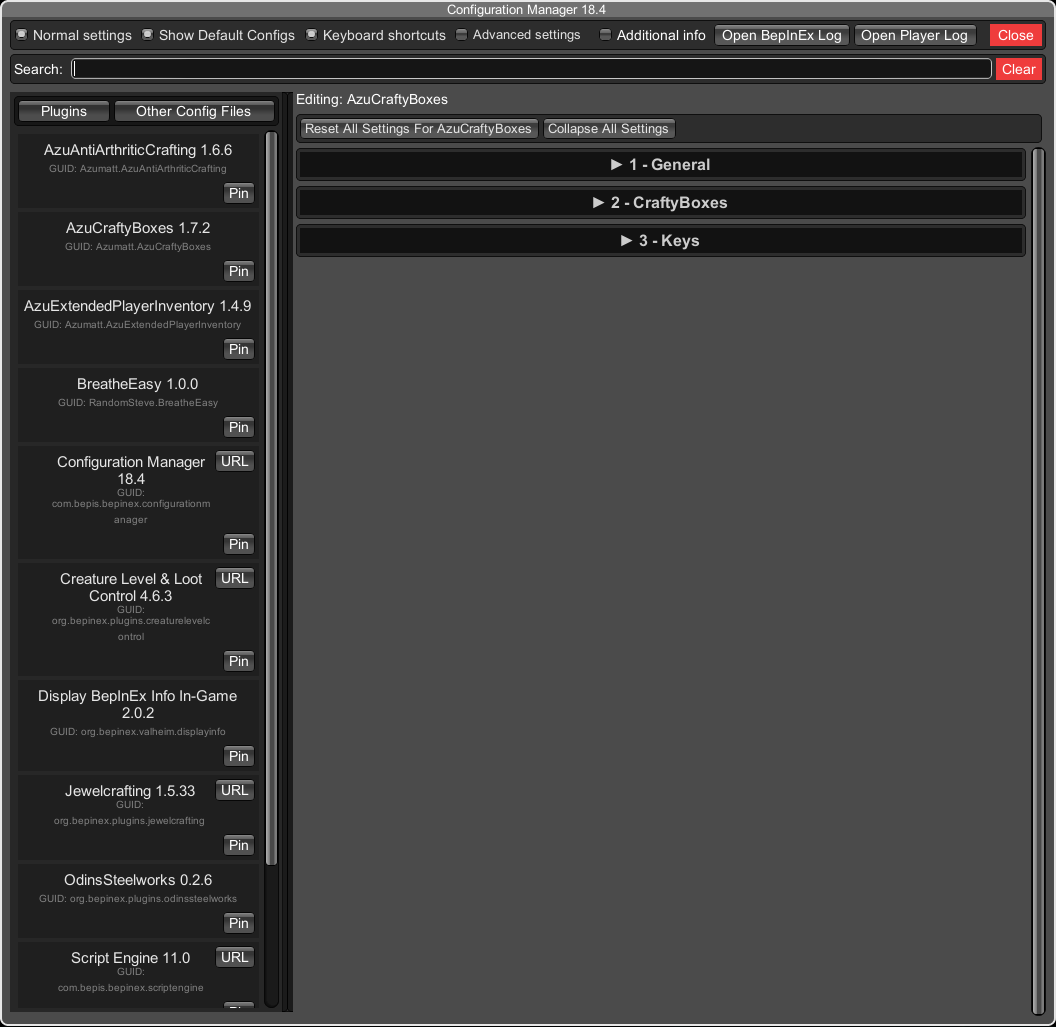
- Navigation: The left column lists all plugins (or additional configuration files) and the right column displays the settings for the selected item (or content of the file).
- Search: Use the search bar at the top to quickly filter settings.
- Keyboard Shortcuts: The configuration manager even supports changing keybindings; simply click on a keybind setting and press the new key combination.
Features
-
Automatic Detection:
- Reads and displays all settings from your plugin’s Config without any extra work from the plugin developer.
-
Rich Metadata Support:
- Uses descriptions, acceptable ranges, and lists (or enums) to render settings as text, sliders, or dropdown menus.
-
Keybind Support:
- Special handling for keyboard shortcuts. The manager properly supports modifier keys (Shift, Control, Alt) so that you can assign combinations without conflicts.
-
Advanced Customization:
- Developers can override the default UI for a setting by tagging it with a custom attribute. A separate ConfigurationManagerAttributes.cs file (included in the release) lets you define custom drawer behavior for individual settings or entire types.
-
Performance Optimization:
- For large configuration lists, off‑screen items are skipped to improve FPS. This is drastically better than the original version.
-
Pinning:
- Easily pin favorite plugins to the top of the list for quicker access.
-
Overlay Canvas:
- When the configuration window is active, an overlay blocks game input so that accidental clicks are avoided.
Screenshots
Color Drawer
Mod Selected View
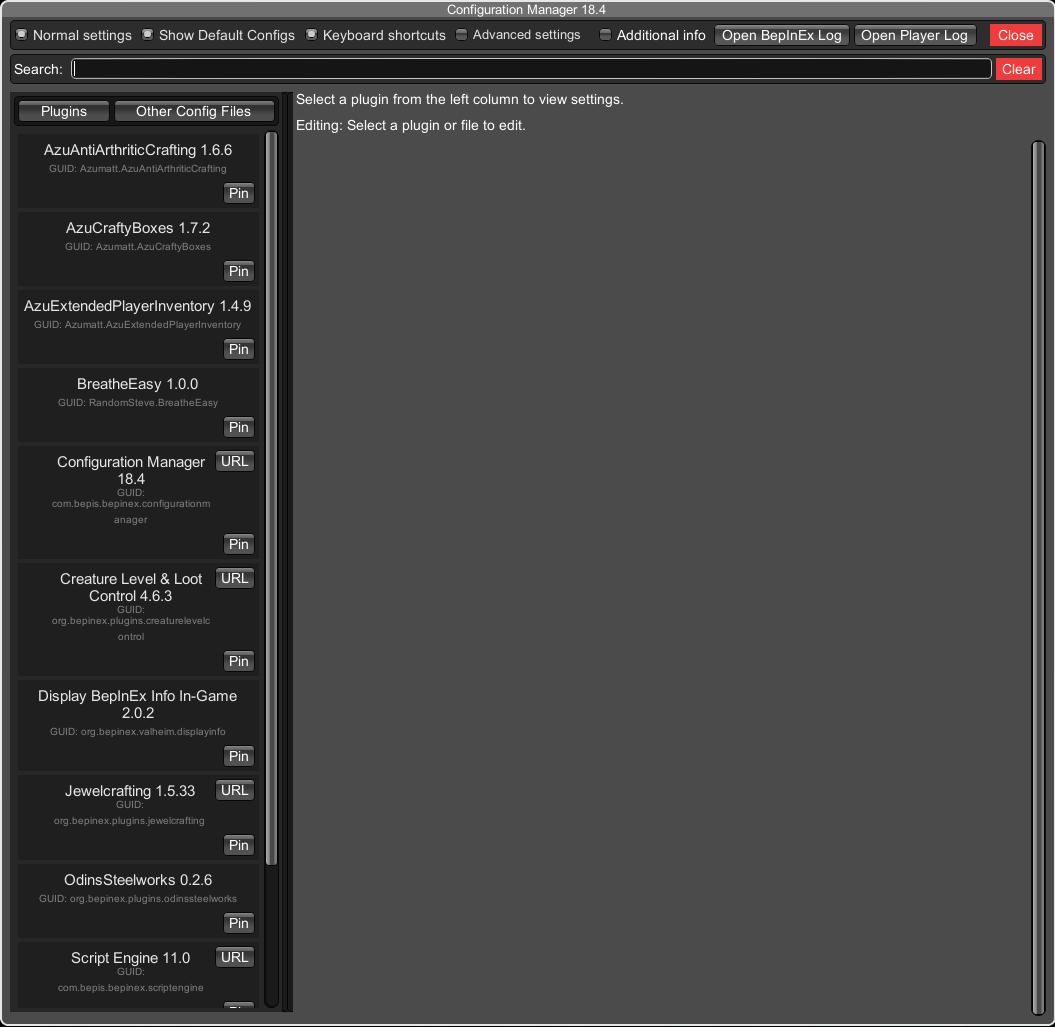
No Selection View
Other Config Files

Synced/Read Only configuration (Red Arrows)

Pinning